Oh, the joy of a computer that decides to go on strike! You know the feeling, right? You boot up your trusty Windows 7 machine, expecting that familiar blue loading screen, and instead… nada. Just a blinking cursor on a black screen, or maybe a cryptic error message that looks like it was written by an alien. My friend, I've been there. I remember one particularly frustrating evening when my laptop, which I swear I’d treated with more care than my own houseplants, just refused to start. It was like it woke up one morning and said, "Nah, I'm done." I tried everything I could think of, pulling out all the usual tricks. Nothing.
After what felt like an eternity of googling and muttering to myself, I stumbled upon a little lifesaver, a digital knight in shining armor: bootrec.exe. Ever heard of it? No? Well, buckle up, because this little executable is the unsung hero of many a Windows repair saga. Especially for us Windows 7 users, who are still clinging to that reliable, if a bit vintage, operating system. So, if you're in a similar pickle, staring at a stubbornly unbootable computer, you might be wondering: "Where on earth do I download bootrec.exe for Windows 7?"
Now, before you go clicking on every shady download link you find, let's get something straight. bootrec.exe isn't really a standalone file you download and double-click like a regular program. It's part of the Windows Recovery Environment (WinRE). Think of it as a special toolkit that lives on your Windows 7 installation disc or a recovery drive.
So, the most legitimate and safe way to get your hands on this repair tool is to:
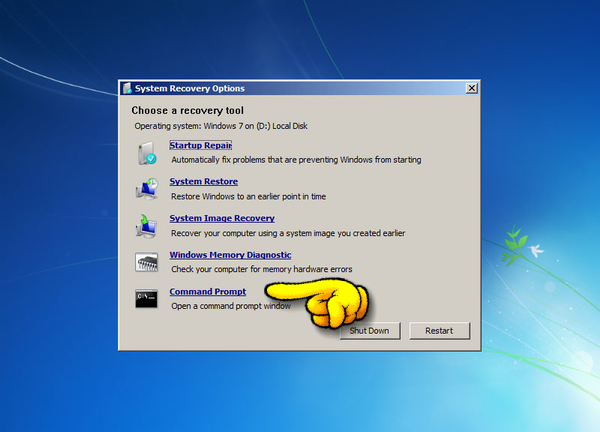
- Use your Windows 7 installation DVD: If you still have that little disc that came with your computer, pop it in. Boot from the DVD, and when you get to the setup screen, look for the "Repair your computer" option. That's where the magic happens!
- Create a Windows 7 System Repair Disc: If you don't have the DVD, you can create a recovery disc on a working computer. Head over to your Control Panel, search for "Backup and Restore," and you should find the option to create a system repair disc. It's like a portable version of the recovery environment!
Once you're in the Windows Recovery Environment (either from the DVD or the disc), you'll see a command prompt. And that, my friends, is where bootrec.exe lives. You can then type commands like:
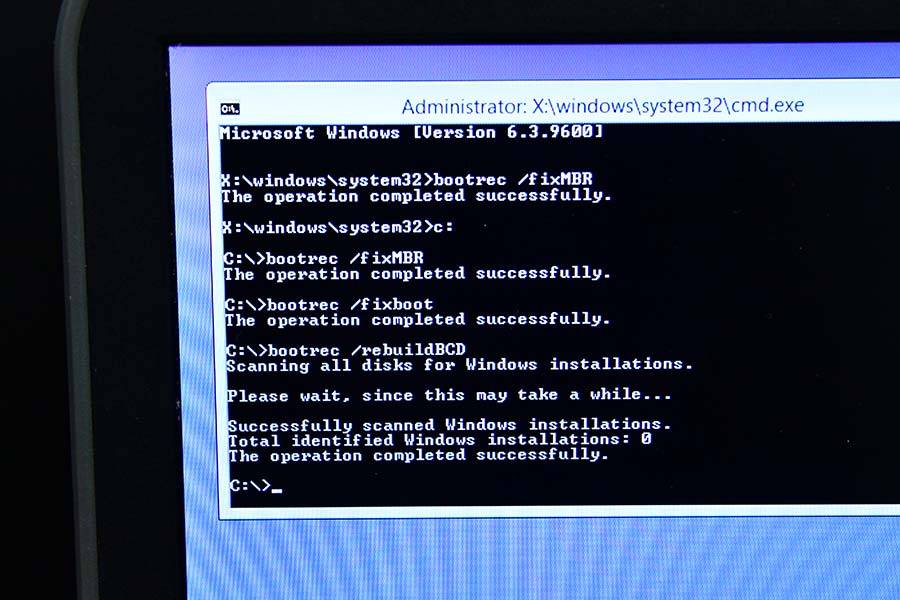
bootrec /fixmbr(to repair the Master Boot Record)bootrec /fixboot(to write a new boot sector)bootrec /rebuildbcd(to rebuild the Boot Configuration Data)
It's like giving your computer's boot-up process a much-needed tune-up. Now, I know what you're thinking: "But what if I can't find my disc?" Ah, the eternal struggle! In a perfect world, you'd always have your installation media. If you absolutely, positively can't find it, and you're feeling brave (and have a good antivirus running!), some forums might point you towards downloading a Windows 7 ISO and creating a bootable USB. But honestly, proceed with extreme caution. Downloading ISOs from unofficial sources is a bit like playing Russian roulette with your data. You never know what you might get.
The key takeaway is that bootrec.exe isn't a download in the traditional sense. It's a tool embedded within your Windows 7 recovery options. So, dig out that old disc or create that repair drive. Your stubborn Windows 7 might just thank you for it!